
To fix a cutting model that is mirrored, upside down, or rotated incorrectly, use the mirror or rotation functions on the cutting page. Mirror X reverses the model horizontally, while Mirror Y reverses it vertically. If the entire template is turned at the wrong angle, use Rotate and enter the desired angle. After you confirm the rotation, the template will rotate accordingly.
Identify the Direction Problem
The documented symptom is a cutting model facing the wrong direction. It may appear mirrored from left to right, upside down, or rotated incorrectly. A misplaced camera hole, sensor hole, or speaker cutout can also indicate that the model needs to be mirrored because the required opening is appearing on the wrong side.

The appropriate correction depends on how the model is positioned. Use an axis mirror when the direction needs to be reversed horizontally or vertically. Use rotation when the template needs to be turned to a different angle.
Apply the Supported Correction
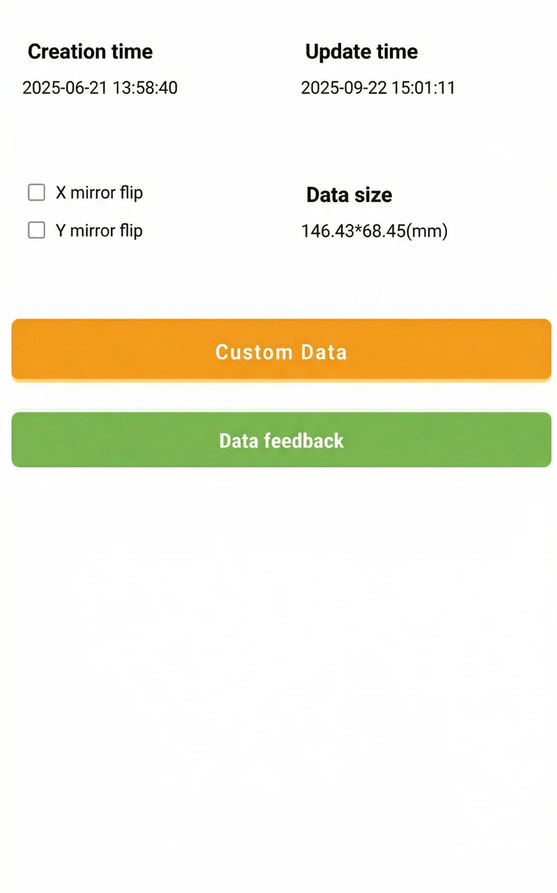
- Open the mirror controls: On any cutting page, tap the icon in the top-left corner.
- Enable Mirror X when needed: This mirrors the model horizontally, reversing it from left to right. Use this option when a camera hole, sensor hole, or speaker cutout is on the wrong horizontal side.
- Enable Mirror Y when needed: This mirrors the model vertically, reversing it from top to bottom. Use this option when the model is upside down or needs an up-and-down reversal.
- Rotate the template when needed: On the cutting page, tap the Rotate icon, enter the desired rotation angle, and confirm the change.
Expected Result
Mirror X should reverse the model horizontally, and Mirror Y should reverse it vertically. This allows cutouts such as the camera hole, sensor hole, or speaker opening to appear on the correct side. When a rotation angle is entered and confirmed, the template should rotate accordingly and correct the cutting direction.
Common Questions
Should I use Mirror X or Mirror Y?
Use Mirror X for a left-to-right reversal. Use Mirror Y for an up-and-down reversal. Select the option that matches the direction in which the model is incorrect.
When should I use Rotate instead of Mirror?
Use Rotate when the template is turned at the wrong angle rather than reversed across an axis. Enter the desired angle and confirm it so the template rotates into the required direction.
Was this article helpful?
Your feedback helps us improve future articles.