
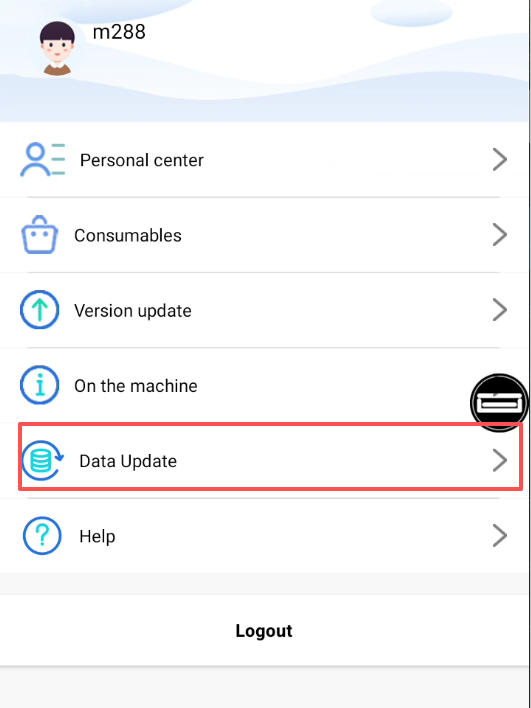
If the mobile model list is not displayed at all, clear the Cutter APP cache completely. After the system is restored, open “My” → “Data Update” to refresh all templates and system data. This procedure specifically applies when the entire model list is absent. If the list remains missing after both steps, record a short video of the problem and send it to the technical support team.
When This Troubleshooting Method Applies
Use this method only when the mobile model list is not displayed at all. The documented usual cause for this symptom is corrupted cached data in the system. This procedure is therefore intended to address a completely absent list, rather than a situation in which only some mobile models are unavailable.
If the problem started immediately after a factory reset, the APP may instead have returned to an earlier version. That condition requires the additional APP update described later in this article.
Clear the Cache and Refresh the Data
Complete the supported actions in this order:
- Clear the Cutter APP cache completely. Make sure the APP cache is fully cleared rather than only partially removing stored data.
- Allow the system to be restored. The data refresh should be performed once the system has been restored.
- Update the data. Go to “My” → “Data Update” to refresh all templates and system data.
The cache-clearing step addresses the corrupted cached data associated with the missing list. Data Update then refreshes the information used by the APP.
Expected Result and Verification
After Data Update finishes, the templates and system data should be refreshed. Check the mobile model list again to verify whether it is now displayed. The relevant result for this troubleshooting procedure is that the model list is no longer entirely absent.
If the list still does not appear, do not repeatedly perform unsupported changes. Proceed to the documented escalation step instead.
Special Case: The List Disappeared After a Factory Reset
A factory reset can roll the APP back to its earliest version. Older APP versions may not support many models that were added in later updates. For this specific situation, use the following sequence:
- Go to “My” → “Check for APP Update” and update the APP to version 3.0.0 or higher. The menu layout may look slightly different depending on the machine version.
- Before doing anything else, go to “My” → “Data Update.” This synchronizes new model data and language packs.
Skipping the manual data update after the APP update may result in missing interface text or k_date errors.
Escalation When the List Remains Missing
If the complete mobile model list is still not displayed after clearing the Cutter APP cache and refreshing the data, record a short video that shows the continuing problem. Send that recording to the technical support team for further assistance.
Was this article helpful?
Your feedback helps us improve future articles.