
When a “Time Out” message appears during film cutting, open My → About this machine and check whether a QR code is displayed. No QR code indicates a mainboard malfunction, and the documented remedy is mainboard replacement. If the QR code appears, restart the machine and begin the cutting process again. If the error remains, record the relevant screens and cutting failure, then send the video to technical support through WhatsApp.
What the QR code check means
The documented symptom is a “Time Out” error that occurs when you try to cut film. The QR code on the machine’s About page helps distinguish between two documented conditions. If the QR code is missing, the mainboard has malfunctioned. If the QR code is present, the mainboard is working, but the cutting instruction may not have been completed.
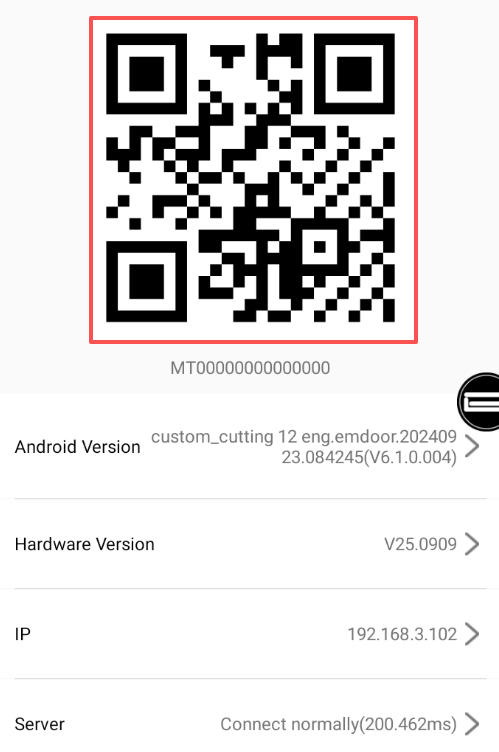
This check determines whether the supported remedy is mainboard replacement or a machine restart and another cutting attempt.
Supported checks and fixes
- Check the About page: On the machine, open My → About this machine and look for the QR code.
- If the QR code is not displayed: Replace the mainboard using the documented replacement method. Before replacing it, photograph the location of every wire so that the wires can be reconnected correctly.
- If the QR code is displayed: Restart the machine. After it reboots, start the cutting process again.
Special case: “1002 time out”
If the displayed message is specifically “1002 time out,” the related guidance identifies the cause as an occupied device port. Restart the device, then open My → About This Device and check whether the QR code appears. A missing QR code likely indicates a mainboard issue, and the mainboard may need replacement. The documented guidance for this specific error also supports trying a factory reset, although reset instructions are not included in the supplied information.
Expected result and escalation
When the QR code is present, restarting the machine and beginning the cutting process again is expected to clear the incomplete cutting instruction and allow cutting to proceed. If the “Time Out” error still occurs, record a video that clearly shows:
- The machine’s startup process
- The About this machine page
- The error occurring during cutting
Send that video to the technical support team through WhatsApp for further diagnosis. The final troubleshooting decision depends on the QR code status: replace the mainboard when the code is absent, or restart and retry cutting when it is present.
Was this article helpful?
Your feedback helps us improve future articles.